
Importing customers from another system is a common need. This guide describes how to do it using Excel and AmpliFlow.
1. Export the customer registry
Start by downloading the Excel template and reviewing which columns can be imported.

The template has two rows of headers:
- The first row (blue columns) is a grouping that makes it clearer where the information ends up. It does not affect the import.
- The second row (green columns) shows the actual columns that are imported.
Decide which columns you want to import into AmpliFlow. At minimum, the customer’s company name must be imported. All other data is optional.
Go to your business system and export the customer registry to an Excel file or CSV file. You only need to export the data you want to import into AmpliFlow. If you can choose the column order, arrange the columns according to the Excel template structure.
Limit very large customer registries
If the customer registry is very large, you do not always need to import every historical customer. Many old customers are probably not relevant from a quality management perspective.
Set a reasonable boundary and document it before the import. For example: “Customers who have not bought anything in the last three years are probably not relevant to us”.
A practical way to do this is to:
- Add a column to the Excel file named Date imported to AmpliFlow.
- Enter today’s date in that column for the customers you will import.
- Import those customers.
- Save the Excel file so you can show which customers were imported and which were left out.
If an older customer becomes active again later, handle that customer according to your process for new customers. In most cases, that means adding the customer to AmpliFlow then.
2. Adjust the Excel file
Open the exported file in Excel. Make sure the columns you want to import are in exactly the right order according to the Excel template.
Process the data so it matches the format you want in AmpliFlow. Check that all relevant customer details are included. The only required field is the company name. All other columns are optional.
Save the file when it is ready.
3. Open the customer registry in AmpliFlow
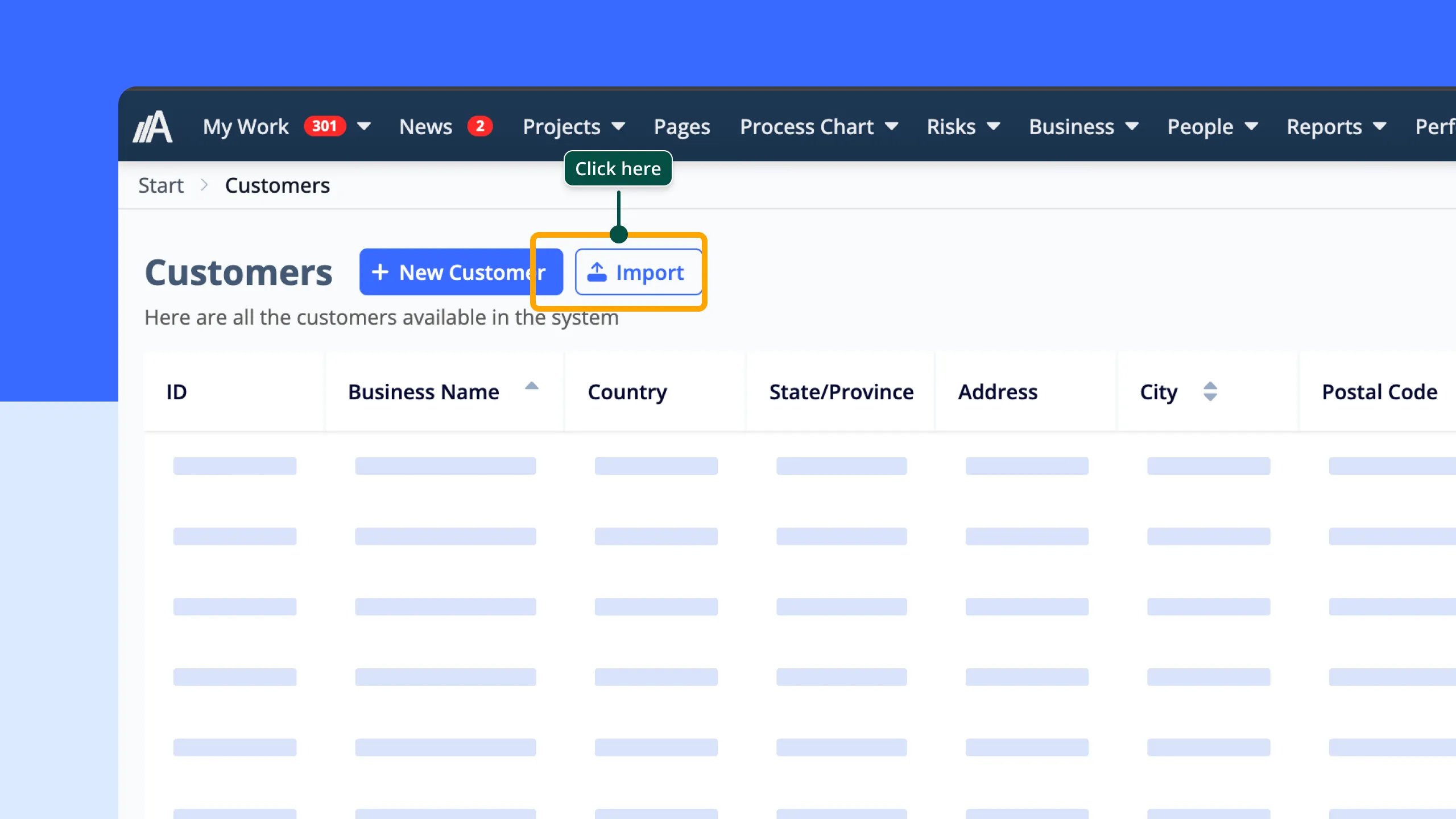
Log in to AmpliFlow and navigate to Customers.
4. Import data
- Click on Import.
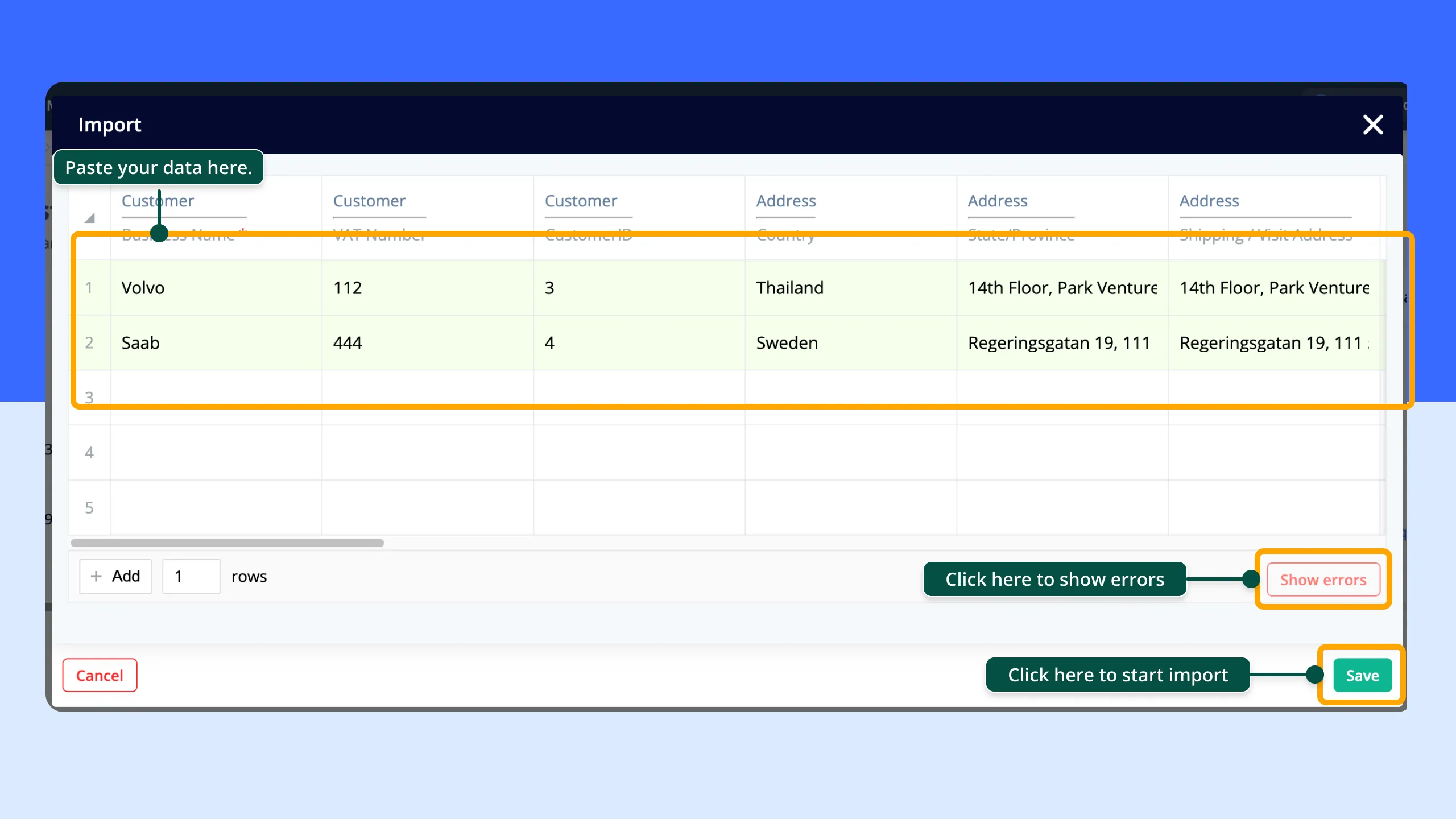
- Select the top-left cell in the dialog that appears.
- Open your Excel file, select all rows with data (including headers) and copy with Ctrl + C.
- Go back to AmpliFlow and paste with Ctrl + V in the grid view.
5. Complete the import
Check that the information is displayed correctly in the grid. Click Save to complete the import.
Your customer registry is now updated in AmpliFlow.