
Archive project tasks and continue existing time entries
Since the last general product update on September 10, you can archive project tasks and milestones, continue a timer on an existing time entry, and assign people to tasks in custom lists.
This update covers product changes from September 11 to October 23. The separate MCP updates are covered in earlier changelog entries and are not repeated here.
What’s new
Archive project tasks and milestones
Archive work that no longer belongs in your active plan without deleting it. Show archived tasks and milestones when you need to read their history or restore them.
- Archived tasks leave the Tasks hub, due-date notifications, and active project counts. They become read-only and you cannot start new time tracking against them. An already-running timer can still be stopped and saved, and previously logged time remains available.
- Archiving a milestone also archives its tasks. Restoring the milestone restores all its tasks, including tasks that were previously archived individually.
Timers and separate time entries
Starting a timer from a project, milestone, task, or timesheet row now shows today’s time entries for that work. Choose to continue an existing entry or create a new one with its own comment.
- Stopping the timer saves the time directly, without another dialog.
-
Add more time entries to a populated day cell without overwriting earlier entries. Separate comment rows let you distinguish different activities for the same task.
-
The project’s Team Time view now has week navigation, so you can review weeks other than the current one.
Assign people to custom-list tasks
Anyone who can edit a custom-list item can now assign one or more active users to its tasks. This applies to both predefined tasks and tasks added within the item.
-
Assignments are saved or cancelled with the item’s other changes.
-
Assignment does not grant access to the list or send a notification. These tasks do not yet appear in the Tasks hub.
Email about checklist comments and risks
- When someone comments on a checklist step, members of the step’s assigned teams receive an email with a link to the step. If the step is assigned to Everyone, all active users receive the message. The comment author does not receive their own notification.
- Operational risk analysis owners and editors receive email when an analysis is created or either of its two risk scores changes. The message shows the current scores and links to the analysis. The role must be assigned directly or through a team; administrator access alone does not subscribe you.
Prefilled improvement links
Create a link from the registration form so the next person can start with the same prefilled values. Use it when several reports should share information but be completed and submitted separately.
- The form menu has an option to generate and copy the link. Text, selections, and other supported form values are included, but photos, file attachments, and generated barcodes are not.
AI settings for each tool
Authorized administrators and tool owners can set business context, writing guidance, terminology, and content to avoid separately for Controls, Positions, Competencies, and Operational risk analysis.
-
The settings guide AI drafts in each tool without changing the company overview.
-
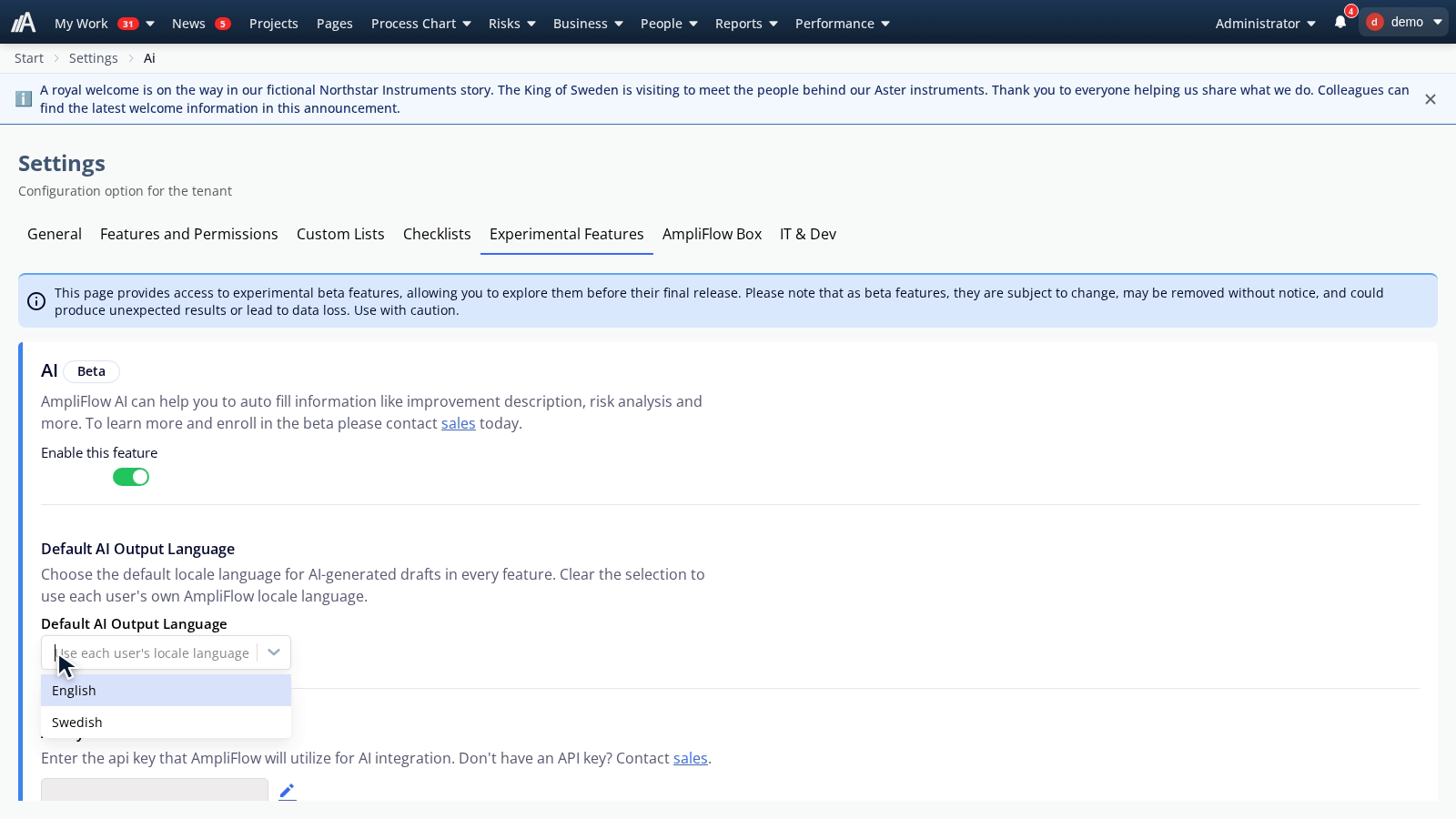
You can also choose English or Swedish as the shared language for AI output. These settings are optional.
Improvements
Project planning and overview
-
On desktop, choose a narrow, wide, or full-width project task list. Your choice is saved for next time.
-
The projects table now shows comments, activity, mentions, quotes, and the next milestone, as the cards view does. Resize columns and turn on reorder mode to move rows. Grouped rows stay under their column headings.
-
Choose to show the project’s highest impact grading, all gradings, or gradings with area names. The menu explains each option, and tooltips show scores and descriptions.
-
Project timeline bars use the project’s status colour, with consistent status colours across cards, the table, and the project overview.
-
The portfolio and individual project timelines refresh every five seconds while the window is active.
-
Project views work better on small screens: buttons and filters fit, milestone dates remain visible, and more of the timeline fits on screen. Swiping the task list scrolls instead of moving tasks; press and hold to drag a task.
Project activity and notifications
-
Select multiple users, activity types, and project relationships together in the activity filters.
-
Mark all as read applies only to activity matching your active filters. Other activity keeps its unread status.
-
The notification panel fetches current content each time it opens, and its counter updates continuously. Read notifications no longer remain as unread after you mark everything as read.
Timesheets
-
Hover over clipped comments to read them, and edit the comment while the timer is running.
-
A running timer appears on a single row. Individual comment rows can be deleted with confirmation.
Pages, controls, and process charts
-
Create a blank page directly in the editor or choose to create one from a template. Both options retain the selected folder and project context.
-
Pages with YAML metadata show it in a collapsible section. In the editor, change metadata as keys and values without mixing it into the page body.
-
Control views have been adapted for mobile screens. Saved task order is retained, and the Tasks hub shows the control’s category and code. Search also covers internal documentation fields.
-
Zoom process charts around the pointer with Ctrl and scroll. Ordinary scrolling continues to scroll the page.
Checklists and labels
-
Checklists that allow custom tasks now have a dedicated reorder mode. Drag tasks and choose Save or Cancel; renaming a task no longer changes the order of other tasks.
-
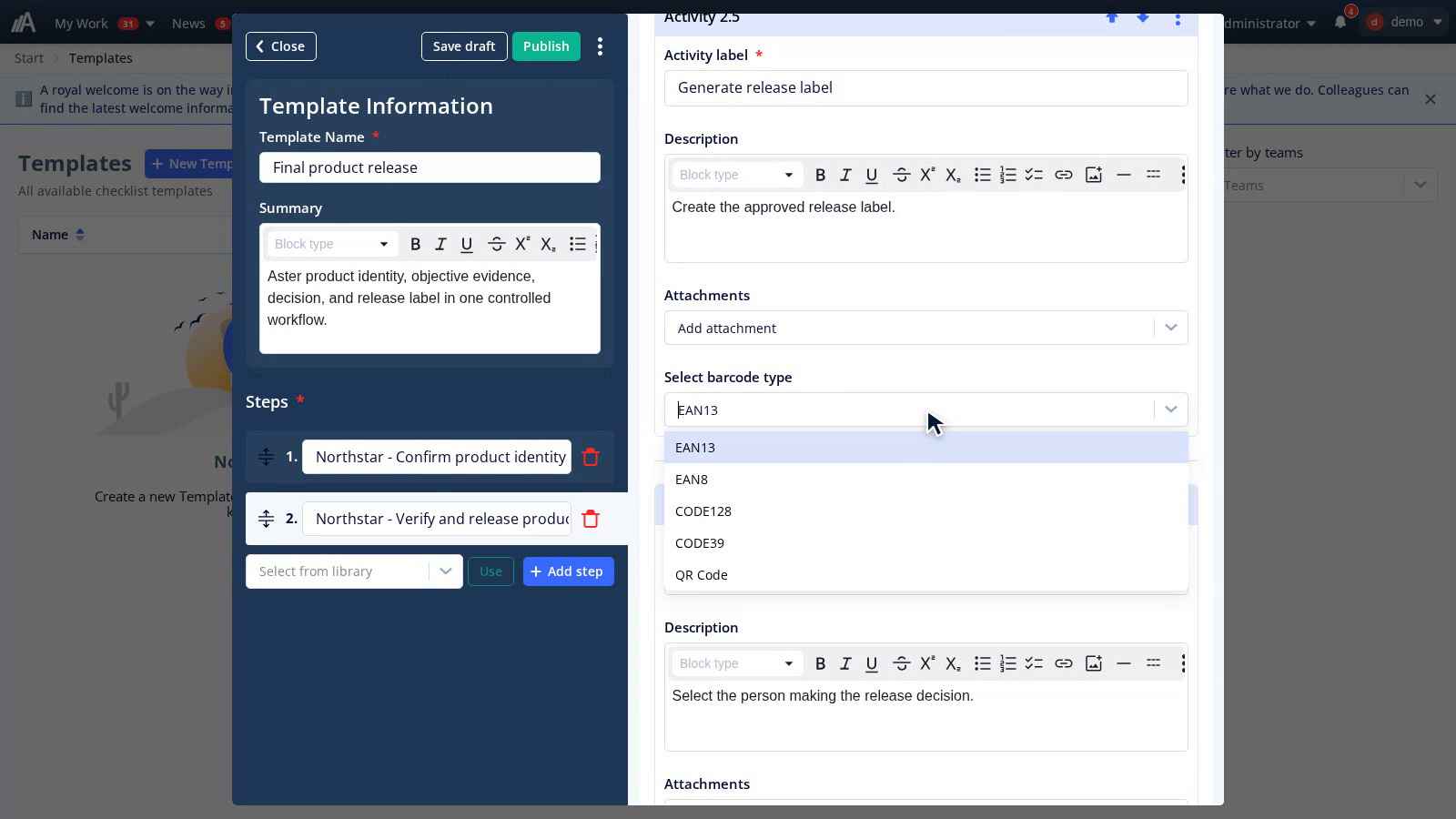
Choose EAN-13, EAN-8, Code 128, Code 39, or QR Code for barcode-generating activities in the template editor. Print queues with custom label layouts support per-field choices of EAN-13, EAN-8, Code 128, and Code 39. Existing ready-made label templates are unchanged.
Fixed bugs
Goals and measurements
-
Archived measurement values no longer count towards goal or measurement totals, progress, or charts. The values remain in the history.
-
The goals list respects selected filters from its first display. Searching for a parent goal no longer brings back archived sub-goals when archived goals are hidden.
Improvements and tasks
-
An improvement step cannot be completed until its required activities are complete. The remaining activities are highlighted in the step.
-
Tasks originating from an improvement show its improvement number in the Tasks hub. Other task types do not get an invalid number.
-
Tasks approaching their due date continue to count and appear as due soon even when they have an assignee.
-
Links from customer and supplier improvement counters open the correct improvement list without requiring access to the improvement dashboard.
-
An improvement you cannot access shows a message instead of getting stuck loading. Oversized photos or an oversized combined registration show feedback before the report is submitted.
-
When impact grading is in use, all gradings can no longer be cleared when updating an improvement.
Checklists and editing
-
Checklist timelines open around the checklist closest to today, so older finalized checklists can be found without first zooming out. An empty period shows a message that no checklists were found.
-
Existing activity photos are retained when a template is changed and published without changing the photo.
-
Tables in locked or other read-only text activities stay inside the text field. Wide tables can be scrolled horizontally.
-
Editing a page’s metadata no longer creates duplicate metadata sections or duplicate dialogs.
-
Timesheet and year-wheel shortcuts no longer interrupt typing in the text editor or activate behind open dialogs.
-
Automatic version-update reloads wait while you have unsaved changes in the main project editing fields and forms.
-
Collapsible sections in project task descriptions can be opened and closed without switching the description into editing mode.
Security
We have also implemented several security measures to strengthen protection in AmpliFlow.
Questions about archiving, timesheets, or another change? Contact support.
This page is also available in Swedish.