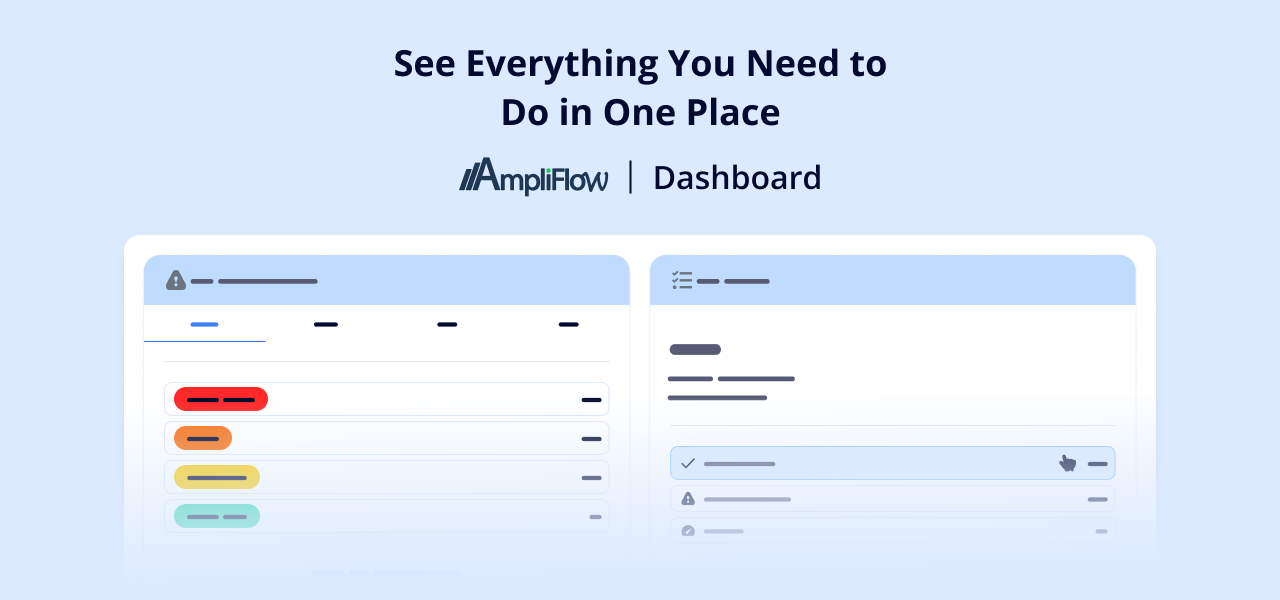
AmpliFlow Dashboard is here. From now on, you can see your improvements, checklists, tasks, and shortcuts directly when you log in to AmpliFlow. We’ve gathered what you need every day in one view, so you don’t have to navigate between different pages to get an overview.
Why AmpliFlow Dashboard?
Previously, you had to click around between Improvements, Checklists, and Tasks to understand what you needed to do. Now you get the answer immediately.
Dashboard gives you an overview of improvements, checklists, and tasks, plus:
- Quick overview of what’s happening in your management system
- Personal start page with your work items
- Fewer clicks to get started with your day
- Shortcuts you choose yourself (to processes, documents, or other pages you use frequently)
What’s on the Dashboard?
Dashboard consists of four sections that display different types of information:
My Improvements

Shows your improvements distributed by status (Registered, Analyzing, Acting, Verifying) and severity. Click on a status or severity level to filter directly in incident management.
My Checklists

Shows active checklists grouped by template. You see how many are on time, behind schedule, or stopped. Sort by template name or status to find what you’re looking for.
My Tasks

Shows open work tasks in AmpliFlow sorted by source (Improvement, Checklist, Goal, Private). You quickly see what’s waiting and can go directly to the task list.
Note: The Tasks section is only visible if your organization has enabled the tasks feature.
Quick Links

Add your own shortcuts to pages you use frequently. For example, a process description you check every week, a risk assessment you update regularly, or the supplier overview. Links are personal and only visible to you.
Get Started with Dashboard
Here’s how to make AmpliFlow Dashboard your start page:

- Go to Administrator in the menu
- Select Settings
- Click on the General tab
- Find the setting “Start page”
- Select “Dashboard”
- Save

All users will automatically see Dashboard as their start page after the administrator has activated it.